dropshipping-tutorial

Shopify

Step 01: Connect Your Store 

Add Your Shopify Store to Selfnamed

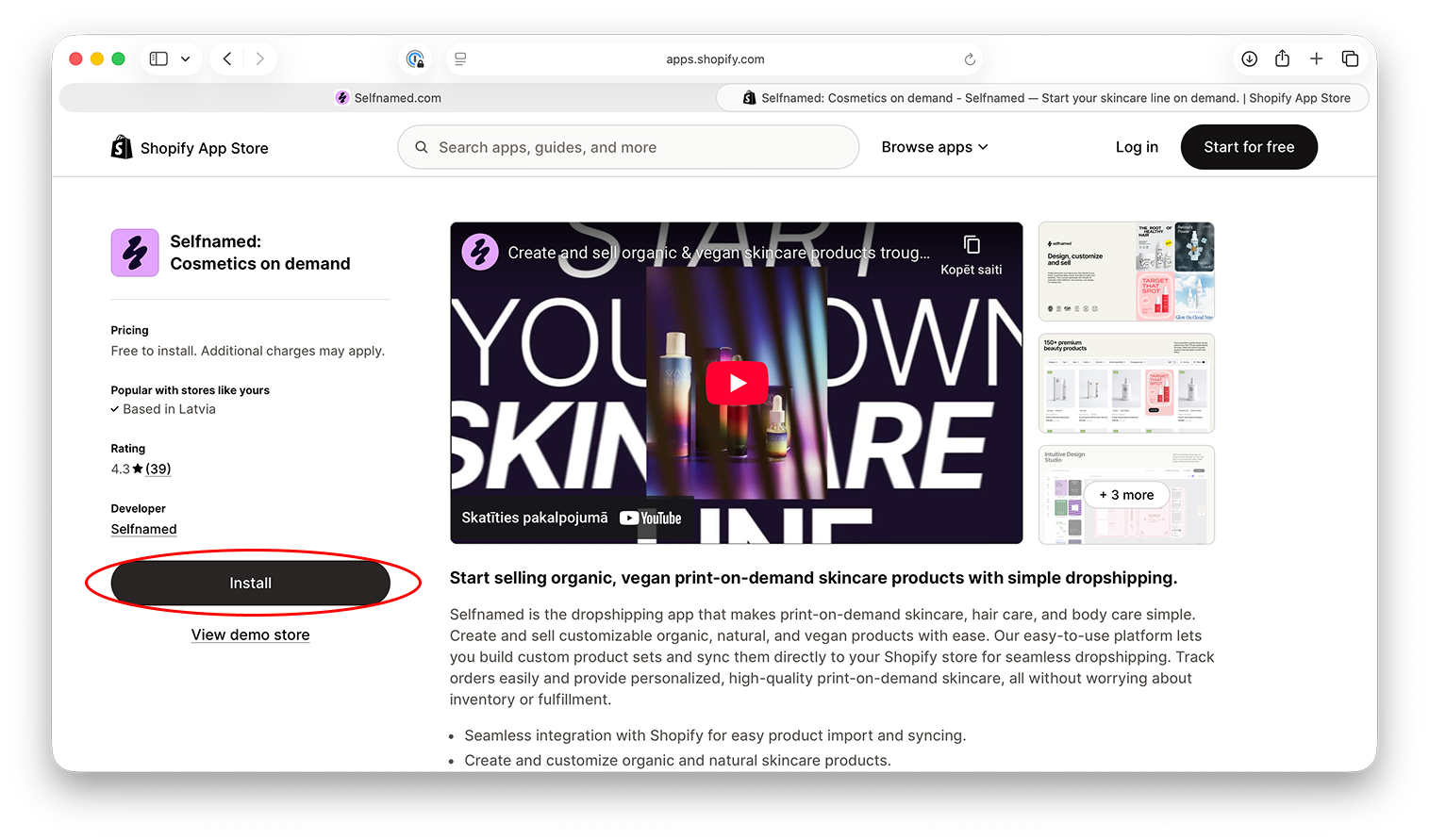
Log in to your Selfnamed account using your email and password, then navigate to your profile and select My Stores to begin the integration process. Choose Shopify as your platform and proceed with the connection. To continue, review and accept the Dropshipping Terms of Service. You will then be redirected to Shopify to install the Selfnamed app.


Step 02: Add a Billing Method

Set Up Payments for Your Store

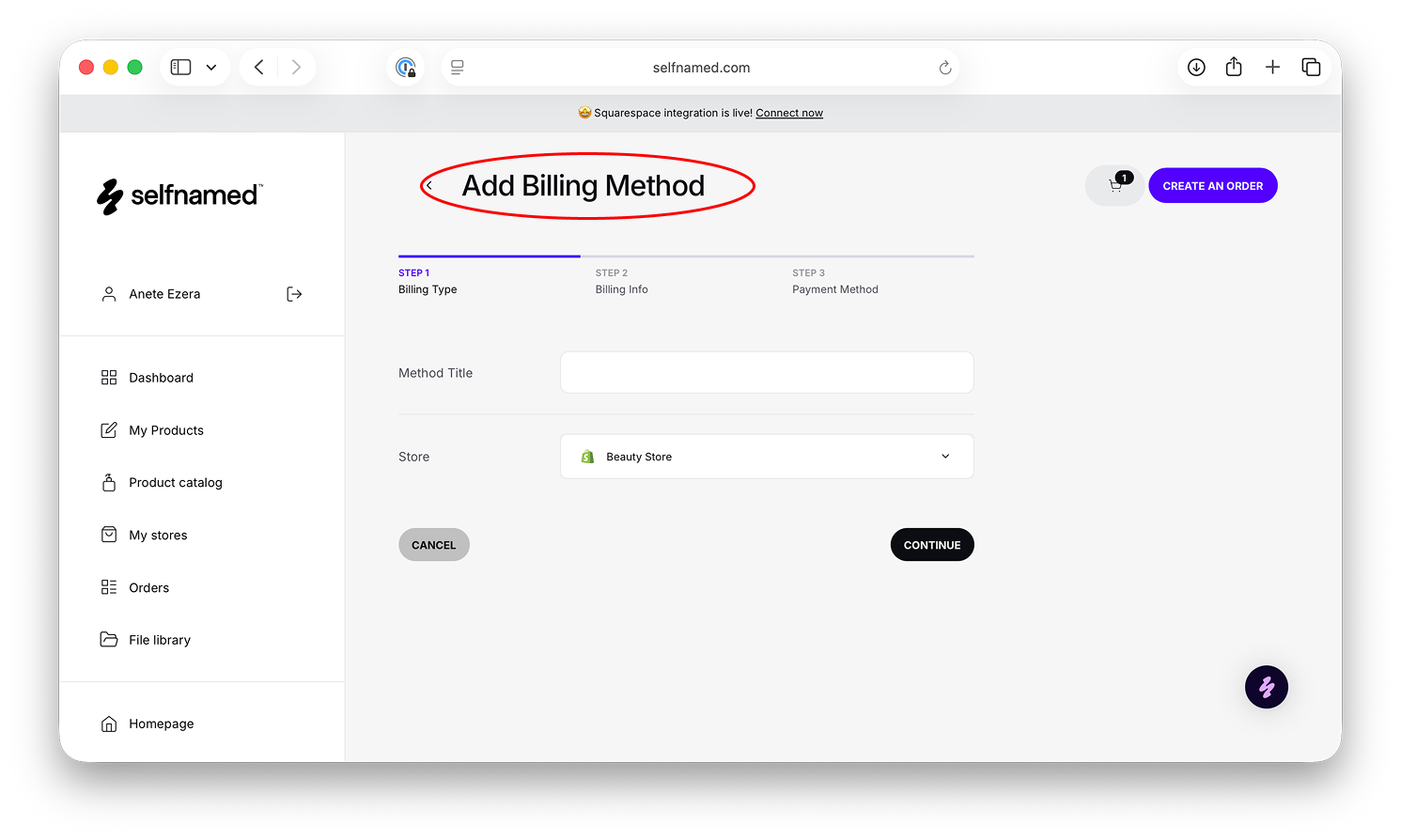
Once your store is connected, open your Selfnamed profile and go to the Billing section. Add a new billing method and assign a name to it for easy identification. Select the Shopify store you want to link to this payment method, then enter your billing and payment details. After reviewing the information, confirm the preauthorization to finalize setup. Keep in mind that only one billing method can be assigned per store, so be sure all details are accurate.


Step 03: Add Products & Sync

Upload Products and Keep Everything in Sync

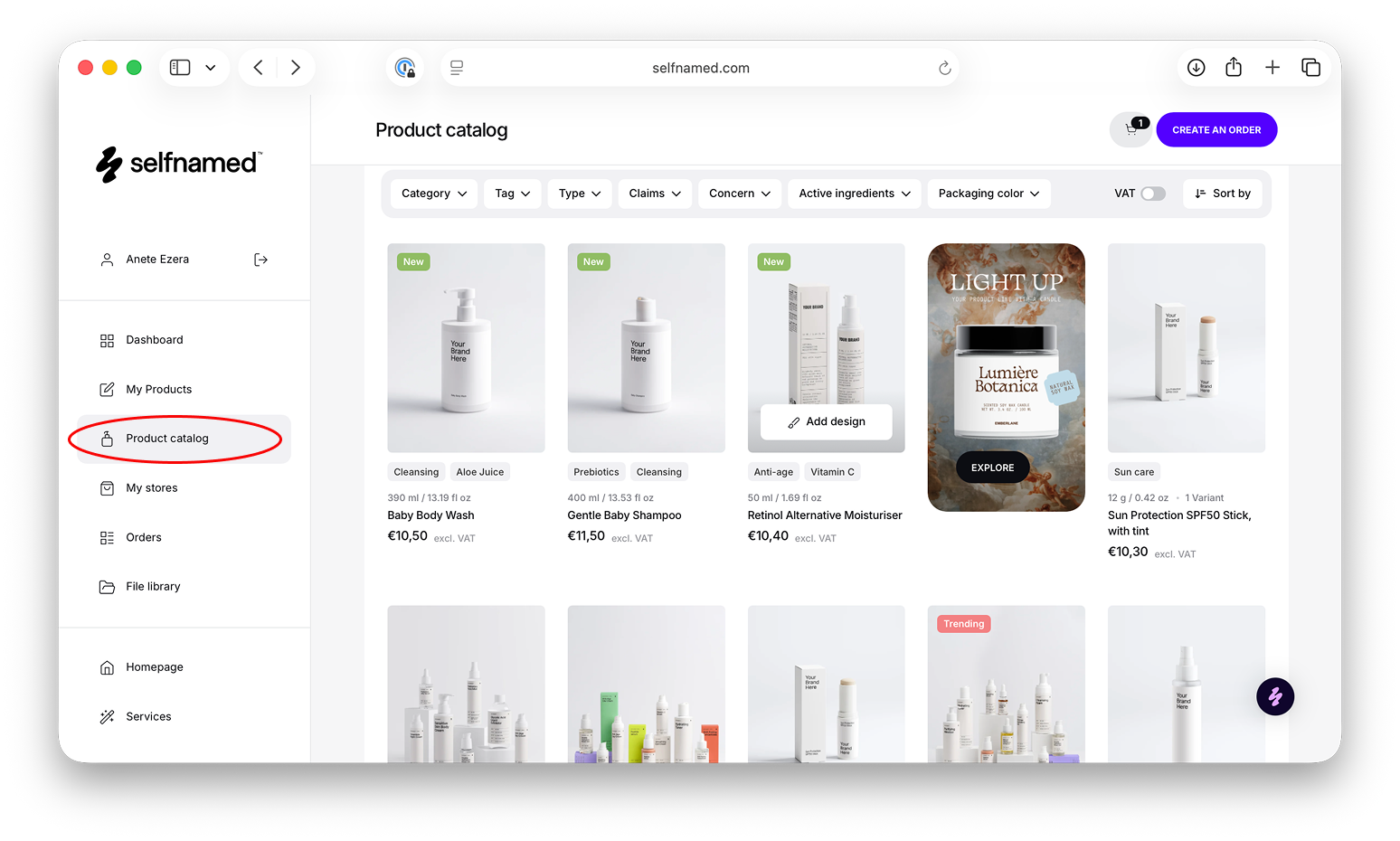
Prepare your product designs by creating new ones or reusing designs from previous orders. To add a new product, go to My Store, select Add Product, choose an item, and click Create Design. Upload or create your design, customize labels and packaging, preview the mockups, then enter product details like name, price, description, and images to add it to your Shopify store.

To use an existing design, go to My Designs, select a design, click the three dots, and choose Add to Store. Selfnamed will automatically sync products and orders with Shopify, publish products across sales channels, and display fulfillment updates in your dashboard.
 

Shopify

Step 01: Connect Your Store 

Add Your Shopify Store to Selfnamed

Log in to your Selfnamed account using your email and password, then navigate to your profile and select My Stores to begin the integration process. Choose Shopify as your platform and proceed with the connection. To continue, review and accept the Dropshipping Terms of Service. You will then be redirected to Shopify to install the Selfnamed app.


Step 02: Add a Billing Method

Set Up Payments for Your Store

Once your store is connected, open your Selfnamed profile and go to the Billing section. Add a new billing method and assign a name to it for easy identification. Select the Shopify store you want to link to this payment method, then enter your billing and payment details. After reviewing the information, confirm the preauthorization to finalize setup. Keep in mind that only one billing method can be assigned per store, so be sure all details are accurate.


Step 03: Add Products & Sync

Upload Products and Keep Everything in Sync

Prepare your product designs by creating new ones or reusing designs from previous orders. To add a new product, go to My Store, select Add Product, choose an item, and click Create Design. Upload or create your design, customize labels and packaging, preview the mockups, then enter product details like name, price, description, and images to add it to your Shopify store.

To use an existing design, go to My Designs, select a design, click the three dots, and choose Add to Store. Selfnamed will automatically sync products and orders with Shopify, publish products across sales channels, and display fulfillment updates in your dashboard.


Have some questions?

FInd the answers about all related topics in our Help Center section

Contact us via Email

Don't hesitate to contact us directly, our customer support will get back to you!